
Most of us have a lot more personal stuff on our iPhones than we think. Banking details, passwords you’ve saved, private pictures, and work email, your phone is pretty much a digital safe for how you live.
And because of this, criminals online are aiming at phone users more, using things like phishing attacks, dodgy apps, fake Wi-Fi, and getting into your accounts. Verizon’s findings show that breaches in security are still happening mostly because of mistakes people make and passwords that have been stolen, so even the newest and most clever phones need to be actively secured.
Apple is constantly improving privacy on the iPhone with each new iOS version gives you even more power over locking apps, hiding apps, and safeguarding your most important information.
Whether you want to learn how to lock apps on iPhone, improve app privacy on iPhone, or secure hidden photos on iPhone, this guide covers the most effective ways to protect your device from hackers in 2026 while keeping your personal data safer online.
Why iPhone Security Matters More Than Ever
Lots of Apple users assume that iPhones are impossible to hack, because the company is known for being very good at security. iPhones are usually more secure than a lot of other phones, but hackers aren’t trying as much to break into iOS itself anymore.
Instead, they’re having more success by taking advantage of how people use their phones, things like passwords that are too easy to guess, phishing scams, and not using safe Wi-Fi.
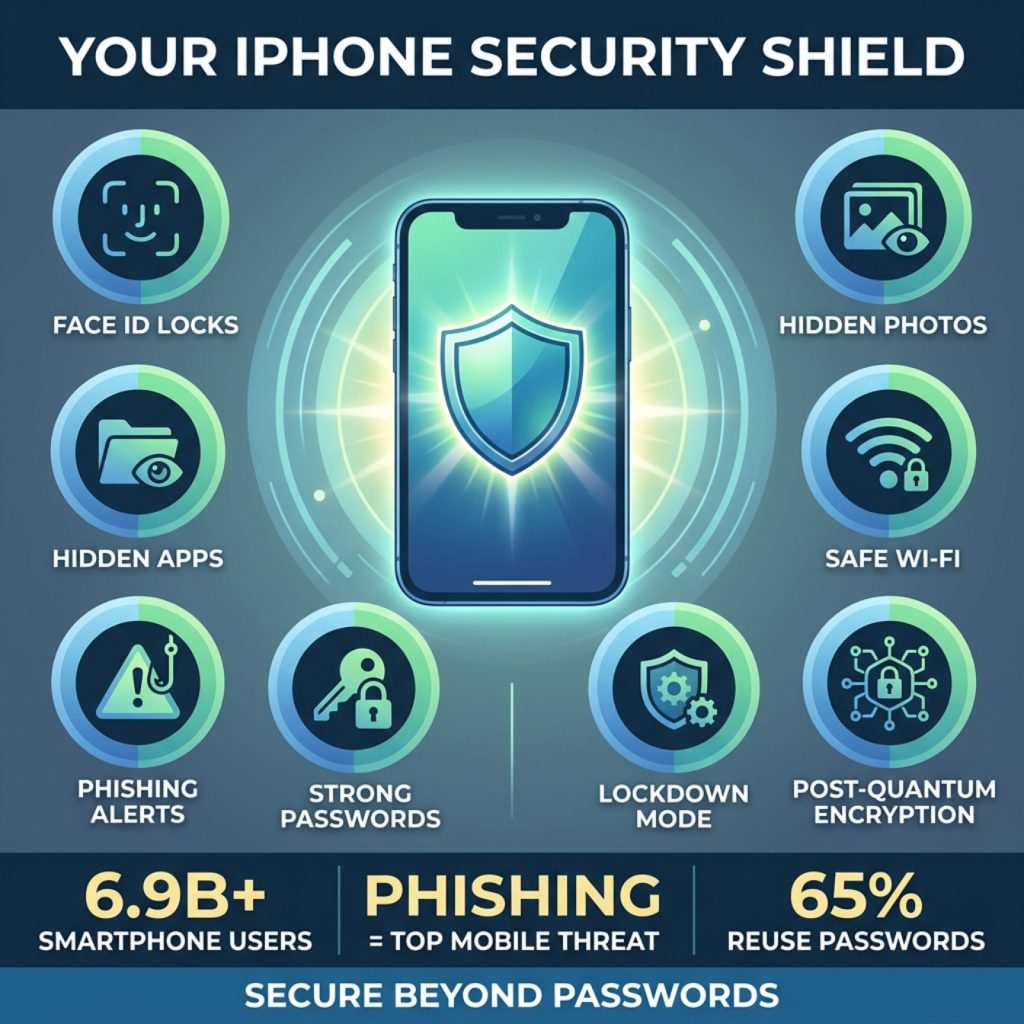
According to a Statista report, smartphone users worldwide surpassed 6.9 billion, making mobile devices one of the largest cyberattack targets in history.
Some of the most common iPhone-related threats include:
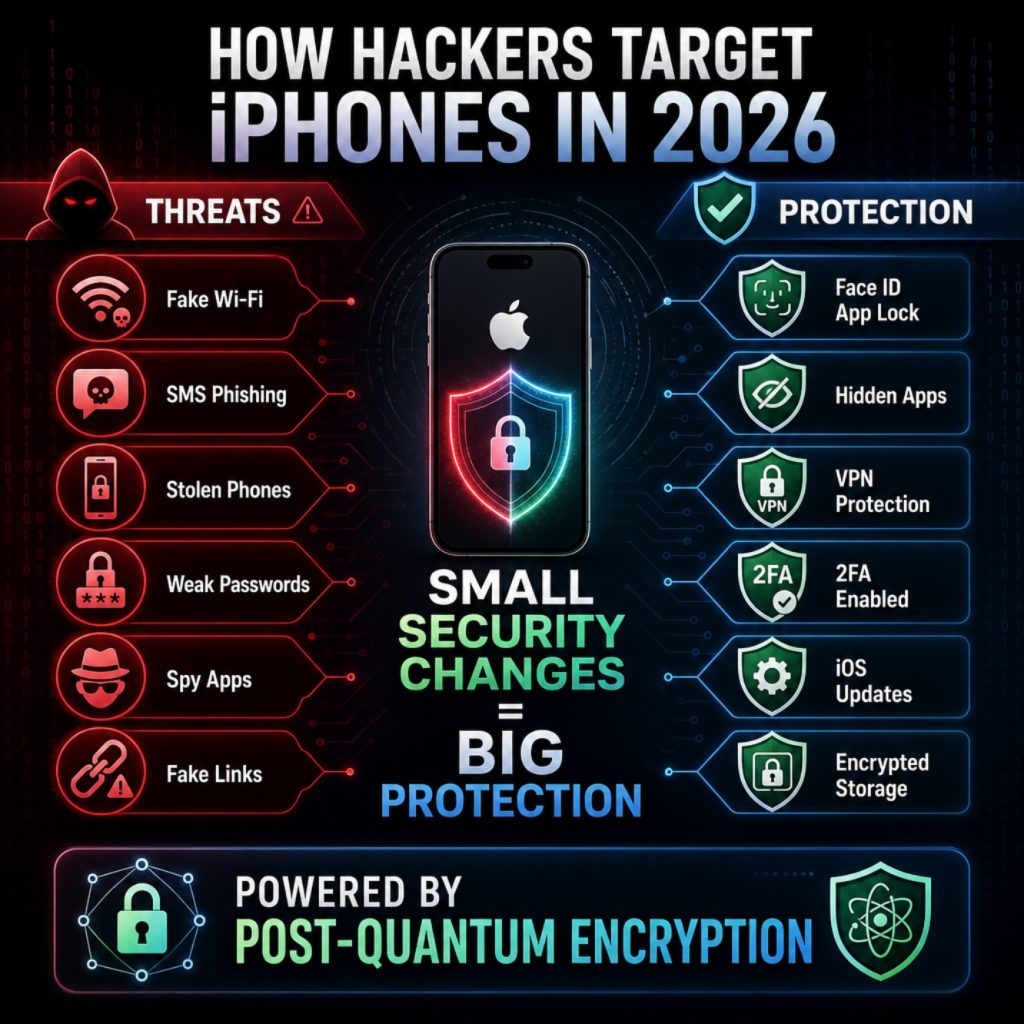
- Phishing text messages designed to steal Apple ID credentials
- Fake banking or delivery service websites
- Public Wi-Fi attacks targeting unsecured networks
- Unauthorized access to apps after device theft
- Spyware hidden inside suspicious apps
How to Lock Apps on iPhone
With iOS 26, a privacy feature many iPhone owners have been asking for is here at last. You can now lock specific apps on your Home Screen with Face ID, Touch ID, or a standard passcode.
Apple says this locking stops people you don’t want to from getting into apps or seeing confidential details in your notifications.
App Privacy iPhone: Steps to Lock Apps on Your Phone
- Press and hold the app icon
- Tap Require Face ID
- Confirm biometric authentication
- The app will now require Face ID before opening
How to Hide Apps on iPhone
Besides app locking, Apple also introduced the ability to completely hide apps from the main Home Screen and App Library visibility.
This feature helps users add another privacy layer when sharing their device with family members, coworkers, or friends.
To Hide an App
- Long-press the app
- Select Require Face ID
- Tap Hide and Require Face ID
The app moves into a hidden folder within the App Library. Notifications, search indexing, and previews related to the hidden app become restricted automatically.
Protect Hidden Photos on iPhone
People often have very private things in their photo collections, and don’t think to lock them up. This can cause a lot of trouble for your privacy if someone gets into your phone or device.
Apple has improved privacy for photos by letting you use Face ID to lock your hidden albums and the folder for items you’ve recently deleted.
How to Secure Hidden Photos on iPhone
- Open the Photos app
- Move sensitive photos into the Hidden Album
- Go to Settings and tap on Photos
- Enable Use Face ID
If you turn this on, nobody can get to your secret photos without your face being recognized.
Turn On Stolen Device Protection
Phone theft continues increasing in many major US cities, and attackers often attempt to gain access to Apple IDs immediately after stealing devices.
Apple introduced Stolen Device Protection to reduce those risks by adding additional biometric requirements and security delays for critical account actions.
Once activated, attackers cannot easily:
- Change Apple ID passwords
- Disable Find My iPhone
- Access stored passwords
- Remove Face ID settings
- Modify account recovery information
- Turn off stolen device tracking
According to Apple, the feature is specifically designed to protect users in situations where someone may have observed their passcode before stealing the device.
Use Stronger Password Habits
Lots of accounts are broken into globally because of passwords that are too easy to guess. A Google survey showed almost 65% of people use the same password everywhere, even though they know it’s risky.
Instead, make a different password for each account, use two-factor authentication if an app or site offers it, and keep your usernames and passwords in a password manager you trust. Biometric logins are a good idea too, as are passwords created randomly.
Be Careful with Public Wi-Fi
It’s still really simple for hackers to get your information by using public Wi-Fi. They frequently set up bogus hotspots (that look like the real thing) in places like airports, hotels, malls, and coffee shops to get you to join them.
After you’re on one of these, a criminal online might watch what you’re doing online, take your usernames and passwords, or send you to a copy of a website that isn’t the true site.
Keep iOS Updated
Keeping your software up to date is effortless, and it’s one of the best things you can do for security. Apple regularly fixes security holes that have been found, ideally before many people have a chance to be harmed by them.
Security experts will tell you to update right away, since phones and computers that haven’t been updated are much easier to be attacked by threats that are already out there.
Use Lockdown Mode for Maximum Protection
Apple’s Lockdown Mode is the most secure way to protect your phone, and it’s for people who are at very high risk of someone trying to get into their data. It does this by limiting what your phone can do, which in turn lowers the number of ways a sophisticated (and likely expensive) spy program or hacker can get to you.
To turn it on, go to Settings, then Privacy & Security and finally Lockdown Mode.
Why Encryption Matters for iPhone Privacy
Encryption turns information into a ciphered form that people who shouldn’t see it can’t get to. It’s still a really good way to keep digital conversations, personal files and things you keep in the cloud safe.
Security professionals are currently concentrating on encryption that will work after the arrival of quantum computers, because the usual ways of encrypting data will likely be broken by advanced quantum computers.
In fact, the US National Institute of Standards and Technology (NIST) has started to create official standards for these ‘post-quantum’ encryption methods, so we’re ready for the security problems of the future.
Advanced Mobile Security with Qencrypt
If you’re looking for a lot more privacy than your phone’s usual security gives you, QEncrypt offers secure messaging using very modern encryption that’s built with “post-quantum cryptography.”
Because the dangers of online attacks are always getting more sophisticated, and experts know that in the future quantum computing will be a major risk, we need encryption that will stay secure. This is all important for keeping personal and business information private.
QEncrypt uses a bunch of sophisticated encryption systems: CRYSTALS-KYBER and Classic McEliece to safely wrap up your encryption keys and CRYSTALS-Dilithium, FALCON, and SPHINCS+ for safe digital signatures and confirming who you are. All of these are being developed as new, quantum-resistant cybersecurity standards to defend private exchanges of information from the next generation of extremely powerful computers.
QEncrypt isn’t like most security programs which are just about passwords or locking down your phone itself. Instead, it focuses on encrypting what you send, and making sure your online identity is much more secure.
Final Thoughts
Your iPhone has good security built in, but a lot of people don’t get all of it set up. If you learn to lock apps on your iPhone, hide and secure your photos, control what apps are allowed to do, and turn on the more thorough privacy settings, you’ll be a lot safer from hackers and having your information stolen.
Often, the easiest changes are the ones that help the most. Using Face ID to lock apps with private information, turning on Stolen Device Protection, not clicking on links that look weird, and making sure your iPhone’s iOS is the newest version will all make your phone more secure.
At the same time, good encryption programs and current iPhone security apps can give you extra security for your personal files, your private chats and for the information you have on the cloud.
Now you have learned how to lock apps on iPhone, but if you want even more encryption for privacy and a system based on post-quantum cryptography, you could look at Qencrypt on the App Store.