
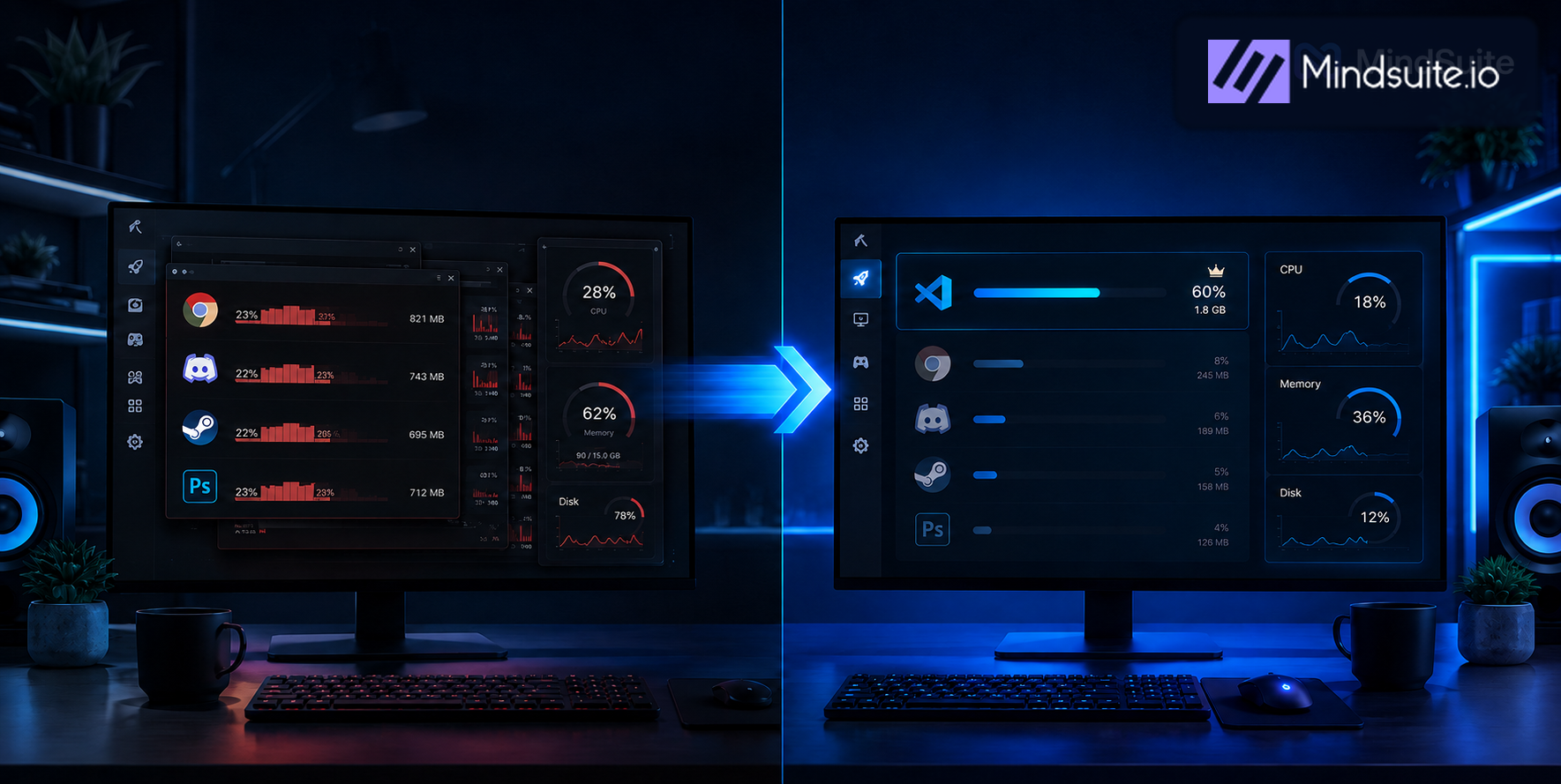
There was a time when the computer would be up and running in a matter of seconds. These days it is another story: it lingers on boot, the fan works overtime and each click has a certain weight to it. The tendency is to put it down to old age and put in an order for a new machine.
But age is seldom the whole story. Often, you can find the cause of the drag in some unassuming issues. Memory is being siphoned off by background programs, storage has crept over its limit, or the hardware is deliberately throttling back to manage the heat. And while all this is going on, the one application you have use for is left vying with a dozen others for what little resources are left.
This guide explains how to speed up computer performance by treating causes instead of symptoms. Each fix below stays practical, free where possible, and safe for everyday users.
Why Your Computer Feels Slow: Five Causes People Overlook
It is wise to know what you are up against before making any changes.
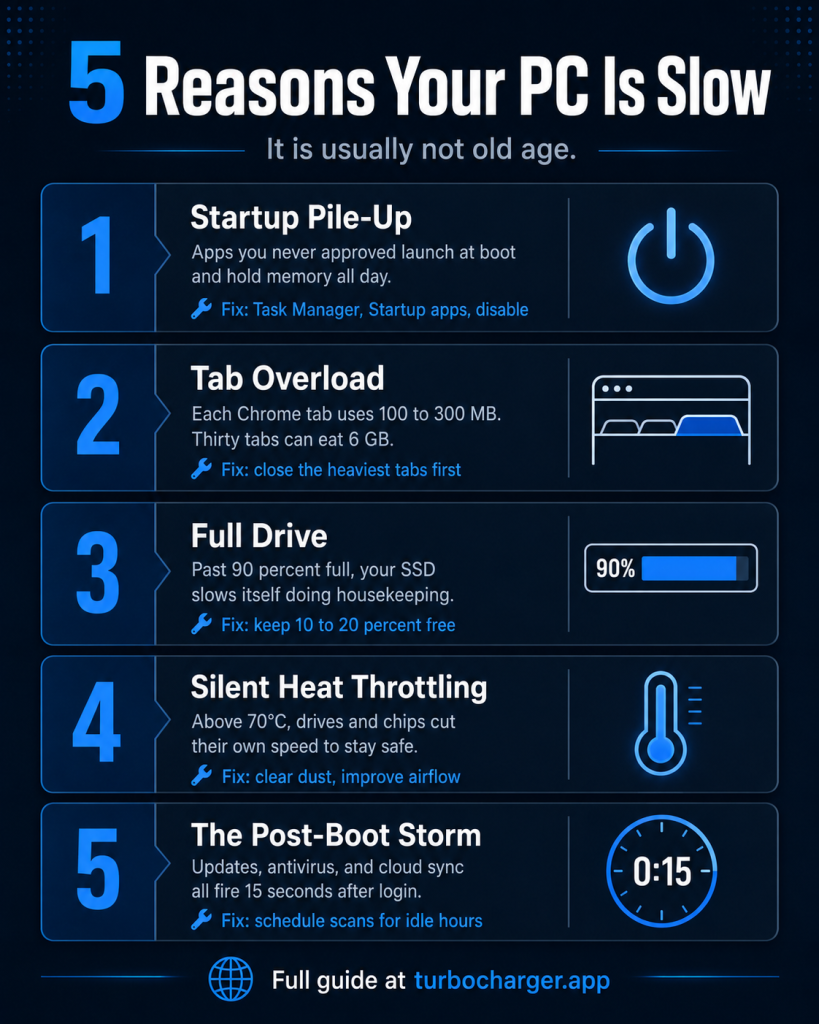
1. Startup Programs You Never Approved
Take the apps that install themselves to your startup list as an example. Without much fanfare, cloud clients and chat programs will put themselves in line with game launchers and update checkers. They are all vying for memory even before a window is opened. You can see them for yourself in the Startup apps tab of the Windows Task Manager.
Put an end to the ones that are not necessary at login and do a restart to see the difference in boot time. Anyone asking how to speed up computer startup should begin right here.
2. Memory Pressure from Browsers and Chat Apps
There is nothing on a standard desktop that will put a dent in your memory like a browser. A single tab in Chrome can take up anywhere from 100 to 300 MB, so with thirty of them open you are looking at several gigabytes being used up. Toss in Teams, Slack and Discord and an 8 GB system has no headroom left. At that point Windows is forced to swap data over to the drive, a process that is much more sluggish than working with actual RAM.
If one wants to see which tabs are the worst offenders, the browser’s task manager is the place to look. Put those to rest first; there is little point in shutting down the lighter ones.
3. Storage That Sits Too Full
For a solid-state drive (SSD) to function as it should, there must be some room to spare. The controller relies on these extra blocks for the odd bit of housekeeping and garbage collection. But when you push the drive past 85 or 90% full, that process is in direct competition with your requests. It is best to leave 10 to 20% of the capacity open; doing so will do more for system performance than any number of cleanup utilities.
4. Heat and Silent Throttling
To guard against the heat, processors and drives will put on the brakes. With consumer NVMe drives, one can expect throttling to set in once the temperature gets to about 70C or so. The firmware on today’s models is written to reduce speeds in a measured way; it is not something you are likely to see happen in the moment. What comes across as more apparent is a system that has been running at a clip for ten minutes and then suddenly bogs down. The situation is made worse by a build-up of dust or obstructed vents, or simply having the drive sited next to a warm graphics card.
5. The Post-Boot Storm
It is not uncommon for a host of demanding tasks to be set in motion within ten or fifteen seconds of logging on. The system will have Windows Update do its check, the antivirus will put in a scan, and cloud folders will start to sync. The result is a desktop that appears fine even as your drive is pegged at 100%. To avoid this, it is best to time your updates and scans for when you are not at your desk.
How to Speed Up Computer Performance Without Buying New Hardware
Now move from diagnosis to repair. Work in order, because each step tells you whether the next one matters.
Step 1: Read the Numbers First
- Hit Ctrl + Shift + Esc to bring up the Performance tab.
- Pay attention to three numbers in particular: a CPU reading over 80% usually indicates a process that has gone astray, while memory close to the limit means there are simply too many applications running.
- Should the disk hit 100%, one can assume it is either background work or a drive on its way out. It is a useful read that will spare one from hours of aimless fiddling.
Step 2: Clear the Obvious Waste
- Trim your startup list.
- Close abandoned tabs.
- Delete downloads and temporary files until the drive has enough free space.
- Then clean dust from vents and fan intakes.
These free fixes resolve a large share of complaints on their own.
Step 3: Fix the Priority Problem That Nobody Talks About
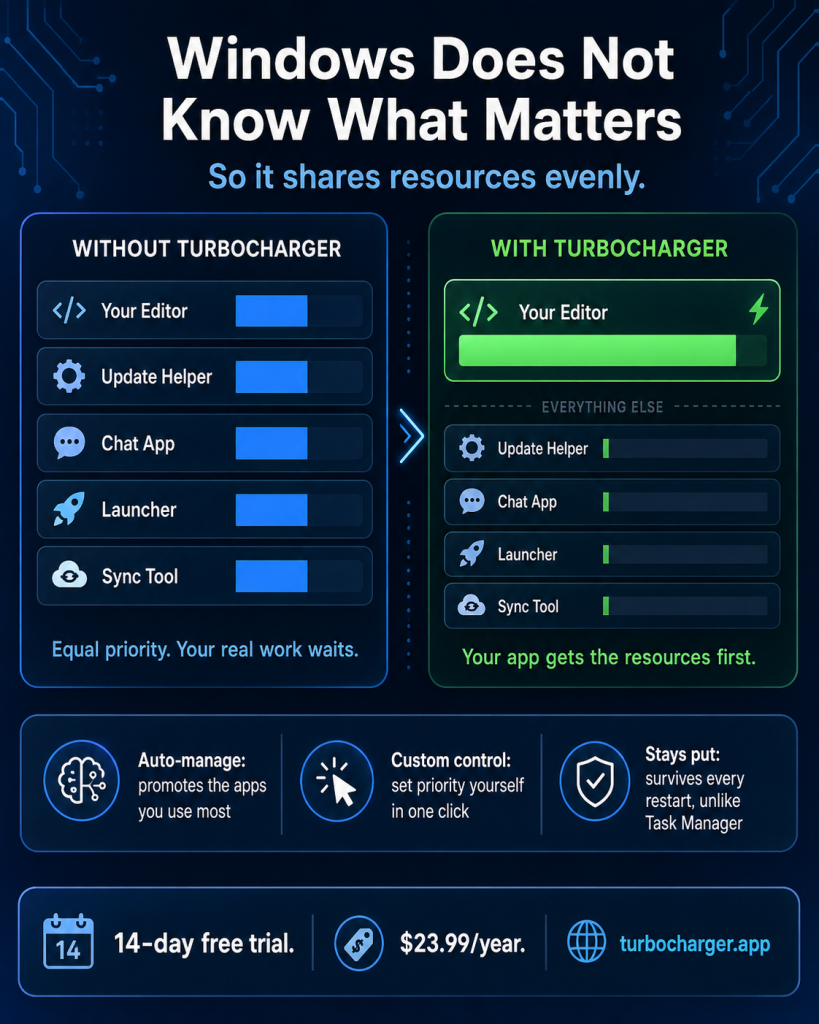
There is a truth to the matter that one will not find in most guides. Windows has a habit of treating your video editor no better than an update helper from some time back, and for all intents and purposes they are equals. The result is that both vie for processor time at the head of the queue, leaving the work you have in the foreground to be held up by clutter of its own making.
One could go into Task Manager and set the priority by hand, but as soon as the machine is rebooted those changes are gone. Doing that every day is hardly a solution.
TurboCharger is what puts an end to it. The program will automatically see to it that your favourite applications get the memory and processor they need. Should you wish to give a game or a render engine top billing, you can do so. In this way your work is not left wanting for resources and you are spared the chore of constant manual adjustment. It is proper pc optimization, not some fleeting registry hack.
Step 4: Skip the Fixes That Do Not Work
One must be honest about it: registry cleaners do not tend to yield any measurable improvement. And there is no point in defragmenting an SSD, as that only serves to waste write cycles. As for those RAM booster programs, they are little more than a way to make applications reload their data. If the machine is of a certain age, three hardware modifications will do far more to help. Start by putting in an SSD in place of the mechanical hard drive. Put in some extra memory should you have 8 GB or under. Then see to it that the case has better airflow.
What TurboCharger Actually Does
The tool solves one problem well instead of promising everything. Three features carry the work.
Auto-Manage App Priority
With TurboCharger, the apps you use every day are put forward while your habits are being monitored. That means your browser or editing suite no longer must vie with whatever is running in the background.
Custom Manage App Priority
Should you wish to take matters into your own hands, an automatic selection can be overridden. One might give a compiler top billing for the duration of a build and let it go once done. And because this is a setting that will hold up after a restart, it is more enduring than any ad hoc adjustment made in the Task Manager.
A Simple Interface
With the dashboard, one can see all the apps and their respective priorities at a glance. There is no need to wade into system settings or make any risky edits to change those priorities; a single click will do it.
Getting set up is a matter of three steps: download and run the installer, then you are ready to assign your priorities.
Who Benefits Most
- A programmer will put in the work to shield a compiler or debugger over the course of an extended build.
- For the gamer, it means staying ahead of overlays and launchers to avoid any stutter.
- Then there is the video editor, who gives render tasks the first call to expedite an export.
- On the business side, an IT manager must see that resources are properly distributed among the software that matters most.
- And when the load is on, a graphic designer makes sure those large files remain responsive.
Build a Maintenance Habit That Holds
Learning how to speed up computer performance solves half the problem. Keeping that speed solves the other half.
A weekly reboot of the machine and a habit of closing tabs that are not in use is all that is required. Then on a monthly basis, one should go over the startup list and make sure there is adequate drive space. Come quarter’s end, it is time to check the health of the drive under Windows storage settings and give the vents a good cleaning. As for resource allocation, leave that to TurboCharger to take care of behind the scenes.
Frequently Asked Questions
How long does it take to speed up computer performance noticeably?
An hour is more than enough for most software fixes. You will see the benefit of clearing drive space and turning off startup apps with a single restart. Hardware is another matter; while it is a longer process, the performance gains are far more substantial.
Will more RAM fix everything?
As for extra memory, only if you are habitually running at capacity. It will not cure a failing drive or malware, nor does it do anything to stop throttling. A look at Task Manager is in order before parting with any cash.
Is changing app priority safe?
TurboCharger is different in that it leaves system processes be. The program makes its adjustments to user applications, not the critical Windows services, which spares you from the kind of instability one might get by doing it manually.
Does TurboCharger work on Mac?
The app is for Windows exclusively, as it needs to make use of the OS’s process priority controls.
Why does my computer slow down again after a few weeks?
Over time drives fill up, caches refill and new installations put entries on your startup. Left to their own devices things drift. Ongoing management is the way to head that off, making automated prioritization superior to an occasional cleanup.
Final Thoughts
One does not often have to replace a machine for being slow; often, it simply requires the right kind of attention. Do not waste time with conjecture, put in some effort where it counts. Have a look at the figures in Task Manager first. Make sure you are clearing out your startup list and drive space and put an end to those tabs left open from hours past. A little dust in the vents is worth checking on as well. Such measures are without cost and will put an end to most complaints.
But there is also the matter of structure to deal with. The way things stand, the machine has no way of telling which application is of consequence and will distribute its resources, accordingly, leaving your actual work to wait. TurboCharger puts an end to that uncertainty. It enforces your priorities, so they remain intact even after a restart.
Do you want to speed up computer performance and hold the improvement?
Start the 14-day free trial at Turbocharger. Then measure the results against your own daily workload, not against someone else’s benchmark.