
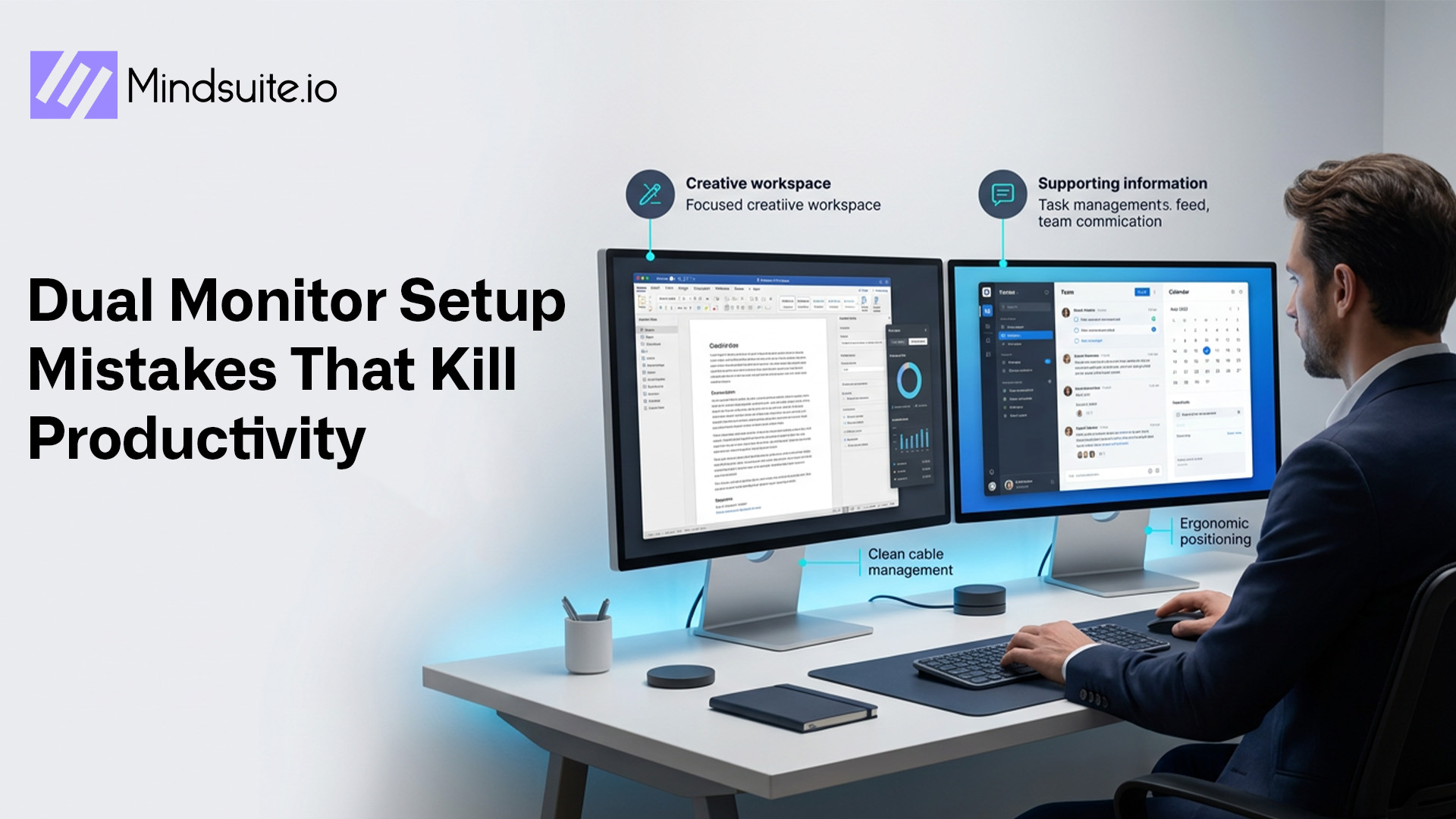
There is no denying that a dual monitor arrangement can change your working habits. You have the screen space to keep track of communications, run projects, and pull up what you need to hand over without constantly switching between windows.
Yet for all its potential, some professionals do not get the boost in output they were counting on. Inefficient organization or a cluttered display will only serve as a distraction; put the monitors in the wrong spot and you are more likely to see your efficiency drop than to enjoy a smooth workflow.
Fortunately, it is simple to put right the errors that stifle productivity. With the proper tools and a couple of tweaks here and there, you can make your workspace a place where you can be focused and perform at your best from morning till night.
Why a Dual Monitor Setup Improves Productivity
There is more to a well-set-up dual monitor arrangement than just the extra screen space. It helps users organize their workflow, access information more quickly, and reduce distractions. You don’t have to minimize windows or hunt down applications; with this setup, your most important tools stay in plain view.
Take a project manager, for instance: he can have reports open on one display and be tracking tasks on the other. A designer will have his creative assets out while he works, and a developer can put code on one side and documentation on the next. Over the course of a day these little things make a difference.
Studies will tell you that if you can eliminate superfluous navigation, you will see task completion times go down and frustration go with it. Your staff are not wasting time looking for something; they are focused on the work that matters. Done right, having two monitors makes for a much smoother, more productive way of working.
Common Dual Monitor Setup Mistakes That Reduce Productivity
- Monitors Incorrectly
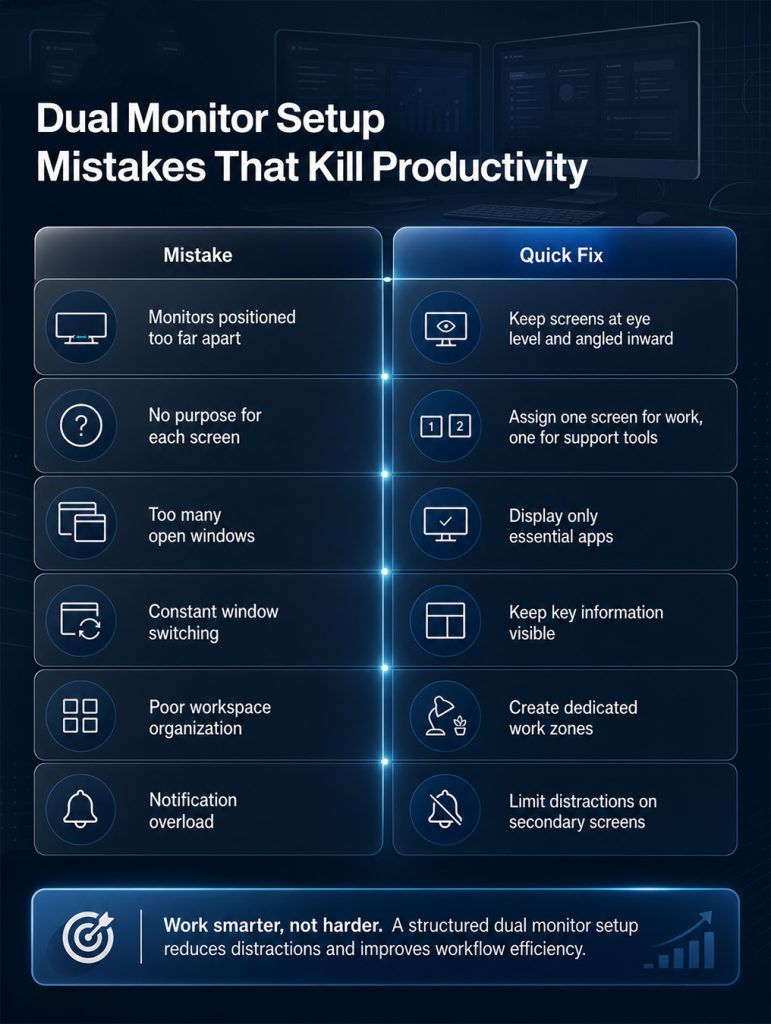
Often people make the mistake of putting their monitors where they are uncomfortable to use. It is all too common for users to set screens at odd angles or place them farther apart than necessary. Before long you are straining your eyes and neck from all the extra head movement.
Then there is the matter of ergonomics, which is key to being productive at work. When your environment is not right, you find your concentration waning as the day wears on. No matter how good your workflow is, a poorly thought-out physical space will hamper it.
Fix It Fast
- Position your primary monitor directly in front of you.
- Keep the top of the screens at eye level.
- Place secondary monitors at a comfortable angle.
- Maintain a viewing distance of approximately an arm’s length.
- Adjust brightness levels to reduce eye strain.
Small ergonomic improvements often produce noticeable productivity gains.
- Treating Both Screens the Same Way
Professionals also make the mistake of running two monitors with no clear division of work. It is all too common for a user to have an assortment of applications open on every screen, which only serves to make things look and feel disorganized.
When your setup is cluttered, you will struggle to find what you need. Before long, you may find yourself wasting time searching for a document or the right communication tool.
Fix It Fast
Create a dedicated role for each screen:
Primary Screen
- Active work
- Content creation
- Design tasks
- Data analysis
Secondary Screen
- Team communication
- Calendars
- Research materials
- Project tracking
This approach helps maintain focus and reduces mental overload.
Dual Monitor Setup Organization Strategies That Actually Work
An effective dual monitor setup is built around organization. Simply adding another screen will not improve productivity if information remains scattered and difficult to access.
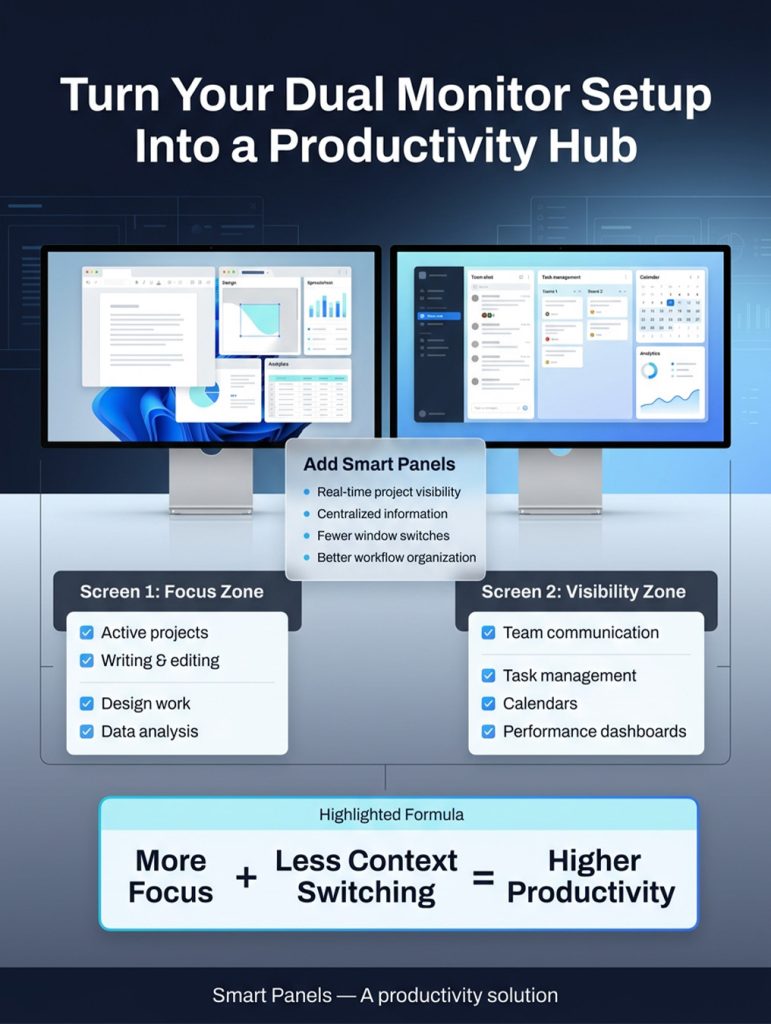
- Create Dedicated Work Zones
Treat each monitor as a dedicated workspace. Instead of randomly placing applications, group similar activities together.
For example:
Monitor One
- Main work tasks
- Writing
- Editing
- Design projects
Monitor Two
- Messaging platforms
- Task management software
- Reference materials
- Dashboards
This structure minimizes distractions and makes it easier to maintain concentration.
- Keep Important Information Visible
One of the most significant advantages of multiple monitors is the ability to display essential information continuously.
Consider keeping the following visible throughout the day:
- Project timelines
- Task lists
- Team updates
- Performance metrics
- Calendar schedules
Having instant access to important information eliminates unnecessary clicks and saves time.
- Reduce Digital Clutter
More screen space often encourages users to open too many windows. While multiple displays increase capacity, cluttered screens can become overwhelming.
Instead:
- Close unused tabs.
- Archive completed tasks.
- Consolidate similar applications.
- Organize windows consistently.
A clean workspace supports better decision-making and improved focus.
The Hidden Cost of Constant Window Switching
You might be surprised at how much productivity window switching costs, which most professionals don’t fully appreciate.
Then there are the interruptions. Each one makes your brain have to reorient itself to a new task. It might not seem like much at the time, but those few seconds add up over the course of a day and significantly impact your output.
Window switching can lead to:
- Reduced concentration
- Increased mental fatigue
- More mistakes
- Slower task completion
- Difficulty maintaining focus
Fix It Fast
Use tools that always keep critical information visible. Rather than hiding information behind multiple tabs, create dedicated spaces for frequently accessed data.
Examples include:
- Team communication channels
- Project dashboards
- Notes and reminders
- Task management boards
- System monitoring tools
Reducing context switching helps maintain workflow momentum and improves overall efficiency.
Why Workspace Optimization Matters More Than Extra Screens
You might be surprised at how much switching between windows costs in terms of productivity, a fact that most professionals don’t fully appreciate.
Then there are the interruptions. Each one makes your brain have to reorient itself to a new task. It might not seem like much at the time, but those few seconds add up over the course of a day and significantly impact your output.
Effective workspace optimization includes:
- Logical screen layouts
- Consistent application placement
- Clear task prioritization
- Reduced distractions
- Improved information visibility
When physical and digital workspaces are aligned, employees can work more efficiently and with less stress.
How Smart Panels Solves Common Dual Monitor Problems
For many people, the second monitor is not what it could be. They let it devolve into just another place to park open windows and end up with more clutter than actual productivity.
SmartPanels are the answer to that. What they do is turn your secondary screen into a proper hub for getting things done. You don’t have to keep opening and shutting down apps; the panel puts the information you want right in front of you in a way that is both orderly and at hand.
Benefits include:
- Real-time project visibility
- Dedicated information dashboards
- Faster access to key data
- Improved organization
- Reduced application switching
- Better workflow management
Rather than treating a second monitor as extra space, Smart Panels turns it into a purpose-built productivity tool.
Smart Ways to Use Your Secondary Monitor
A secondary monitor becomes significantly more valuable when used strategically.
- Project Tracking: Make sure the whole team can see where things stand at any point in the day with timelines, milestones, and progress reports. It is a simple way to keep everyone informed and save them from having to track down status updates.
- Team Communication: Put your communication tools on a screen of their own. This way, everyone can see the messages, but they don’t interfere with what people are working on.
- Performance Dashboards: For better visibility and to make decisions more quickly, have a live view of your operational data, business metrics, and other KPIs.
- Calendar Management: Schedules, appointments, and deadlines should be within easy reach. It’s good for planning, and it means you won’t overlook a commitment.
- Notes and Reminders: Set aside some panels for action items or anything else of import that you need to hand to keep the day running smoothly.
A properly managed dual-monitor environment becomes a command center that keeps critical information within view.
Why Software Matters More Than Screen Size
You could argue that the size of your monitor is a big deal, but eventually it is the software, not the hardware, that tends to be the catalyst for better productivity. Even the finest monitor won’t organize your information; what matters is how well you manage your workflows on screen.
That is the gap MindSuite’s tools are designed to fill. With the right productivity software to centralize your data and make key resources easy to access, you get more from any display in your workspace. Put some SmartPanels together with these tools and you have a work environment that is far more efficient and focused.
Best Practices for Long-Term Productivity
To maximize the benefits of your dual monitor setup, follow these proven strategies:
- Assign a clear purpose to each monitor.
- Keep frequently used information visible on one monitor.
- Reduce unnecessary notifications.
- Minimize window switching.
- Maintain a clean digital workspace.
- Organize applications consistently.
- Use dashboards to centralize information.
- Regularly review and improve your workflow.
Small adjustments can produce significant productivity improvements over time.
FAQs
1. Does a dual monitor setup really improve productivity?
Yes. A well-organized dual monitor setup reduces window switching, improves visibility, and helps users manage tasks more efficiently.
2. What is the most common dual-monitor productivity mistake?
Poor organization is one of the biggest issues. Many users add a second monitor but fail to create a structured workflow.
3. How should I arrange my monitors?
Your primary monitor should be directly in front of you, while the secondary monitor should sit beside it at a comfortable angle and height.
4. How can Smart Panels improve a multi-monitor workspace?
Smart Panels transforms secondary displays into dedicated productivity dashboards that keep essential information visible and organized.
5. Is software more important than monitor size?
Often, yes. Effective software and workflow management often have a greater impact on productivity than simply increasing screen size.
Conclusion
When you use a dual monitor arrangement effectively, it can boost your productivity. But all too often its value is diminished by the usual errors: putting the monitors in the wrong spot, letting the screens get cluttered, or spending too much time toggling between windows.
There is a way to get more out of your workspace, though. Put some effort into organization and make sure you have a clear view of what matters; set up proper work zones, and you will find that even minor adjustments can do wonders for your focus and the consistency of your workflow.
If you want to squeeze the most from every screen, SmartPanels is a no-nonsense option for individuals and companies alike. It turns your secondary display into an intelligent hub so your team can remain on top of things and stay productive.